There’s nothing wrong with the CH340 drivers, brltty, the Braille driver is grabbing the other config of the USB device and as you can’t have both configs active at once, the CH340 disconnects. Disable brltty and the issue goes away and the UART becomes available again and Chirp et al. work again. Well known issue with brltty.
As a non-computer geek, this topic is the most incomprehensible I’ve come across! 
1 Like
If I get the time over the weekend I will dig out the newer PC and connect to my TV as the the display and see if I can get Chirp running on that. I for a while followed the Amiga saga , the mods people did to the 1200 amazed me ! A bit like the Chicken and the Egg conundrum I have always wondered if the advance in physical technology leads to better software or the other way around ?Alternatively do we really need the need supposedly better technology when we already have something that works very well ?
1 Like
Not sure if this isn’t connected to the fact the battery died years ago and it is now run from the mains only ? and yes I did disconnect it !
You have to type 1 command into Google. “disable brltty” and you get back a million web pages with the commands you have to type to disable brltty so it stops thinking your Chirp cable is a generic Braille output device.
sudo systemctl stop brltty.service
sudo systemctl disable brltty.service
Log out, unplug cable, log in, plug in cable. Check dmesg that CH340 has not been disconnected after connecting then use cable in Chirp.
It’s very simple John, but a lot happens like dominoes falling. Each step is quite simple but the whole thread of events seems complex.
USB device gets plugged into USB host. Think FLASH memory stick is the device, your computer is the host.
Host powers device.
Microprocessor in device boots up.
Host asks device what it is.
Device tells host what driver it needs.
Host loads driver from big driver store and connects driver to device.
Rest of software sees new driver and does stuff.
Disk drive appears in your file explorer.
Job done.
In this case brltty is a Braille screen reading software that can use USB attached Braille output devices. It reads the text off the screen and drives the pins in the Braille device so you can feel the letters. Many USB Braille devices use a CH340 USB UART. Some versions of brltty had a bug where brltty mistakenly thought any CH340 USB UART was Braille device. In this case brltty thinks the Chirp programming cable is a Braille device.
A USB device can have many configurations. It tells the host this when the host asks what the device is. For example a USB phone dongle can be a phone or a broadband modem. Config 0 is a phone and config 1 is a broadband modem. The software you have will note what you are trying to do and select the correct configuration. But you cannot select both. It’s either/or and there is a defined way to select config 0 then unselect it and select config 1.
The normal UART software is loaded first in this case and selects config 0 (shown in the dmesg log). brltty has decided there’s a Braille device in error and selects config 1. But it’s dumb here and does not unselect confg 0. You try to get 2 configs selected and the device says “not allowed” and stops soft disconnects and stops responding. This is why there was no UART for Chirp (the handheld programming software to use).
The sequence of events is in the dmesg log. This is a log of all the important stuff happening on the PC. There’s there same thing for Windows just in a different place. And Windows calls the first serial port COM1:, Linux calls a USB serial ttyUSB0 and for unimportant reasons it’s known by its name as if it was a file on the disk… /dev/ttyUSB0.
All the events are in dmesg log and it’s merely a matter of looking through it and see what the messages say. But it can get big and full of important stuff and also full of noise that is not important. So the commands were given to empty the log so only the juicy stuff when the USB device was plugged in is shown.
Each step is reasonably simple and self-contained and the result is you can find out what the issue. Many issues are a case of dump log, read log, faff about with software commands, see if it works. Lather, rinse, repeat.
2 Likes
On the off chance you updated the software and that included the kernel, then you’ll need to reboot before new usb drives are acknowledged.
I didn’t read all the command outputs so maybe irrelevant but has caught me out before.
1 Like
Ubuntu started using systemd from around 2015 with 15.04 Vivid Vervet.
Older versions may not respond well to systemctl etc … not sure.
Of course dmesg has been around since ‘time began’, and keeps you well-informed.
Still keen to hear just how old Brad’s o/s actually is 
Those of us lucky enough to have lots of OLD PC hardware, can revel in a substantial collection of REAL RS-232 serial ports. Without the ‘USB layer’, perhaps the latency is lower, though in reality even at 38400 baud (K3 default), this isn’t going to matter. It is worth noting that, confronted with doses of RF, real RS232 can have a better survival rate than its USB cousin.
Of course, today, you can still get low-cost, real, 2-port RS-232 cards that will plug into the PCIe bus of your new PC. And, where required, these ports will run at many 100’s of kbaud.
Under Linux, real ports present as /dev/ttyS0, /dev/ttyS1 etc just to keep ‘new players’ on their toes 
73 Dave
Brltty 6.4 was released in Sep 2021 and 6.5 which fixed this was released in June 2022. So it will be a systemd based Linux. You have to ask if any updates have been performed / installed since Ubuntu was fitted. My money is on no.
2 Likes
I’m late to the party, and the thread has moved on, but I think it is worth pointing out why using “sudo” cannot possibly help in this situation. It demonstrates an important principle.
The original command ls -la /dev/ttyU* is looking for files that match the given wildcard and prints information about them. The error message indicated that no such files were found. It is tempting to think that using sudo will search for the files with root privilege, and maybe find something that the ordinary user cannot see. But it won’t.
Wildcards are expanded by the user’s shell. In the first case, the shell looked for files matching the wildcard /dev/ttyU*. It didn’t find any, so it passed on the argument unchanged. The ls command ran and looked for /dev/ttyU*, complete with the literal asterisk, and unsurprisingly reported that it did not exist.
You can see what is coming. When we put sudo on the front, the shell still expands the wildcard first, with exactly the same result as before. The privilege elevation hasn’t happened yet. As before, the wildcard is passed through literally. Eventually the ls command runs as root, but it still gets the argument /dev/ttyU* and fails to find it. It would be surprising if it did. It is not impossible for a filename to contain an asterisk, but it is terribly confusing and usually avoided.
If we really needed the wildcard expansion to be done with root privileges, we would need a new shell running as root. Running sudo sh will start a new shell (typically with a # prompt), and any wildcard searches used from there will be done with root privilege. But it isn’t necessary in this case - in general you can either list the names in a directory or you can’t, and if you can, more privilege won’t change the list. In more complex cases (pathnames containing a directory with restricted access controls) it could well make a difference.
Martyn M1MAJ
1 Like
Martyn, many thanks for your enlightenment 
Ordinarily, I would not use sudo ls -la, but when dealing with an unfamiliar system, not everything you try is necessarily based on sound analysis.
In fact, I have an altogether ‘darker’ secret. I always add the following line to my .bashrc file:
alias dir=‘ls -la’
So I actually use:
$ dir /dev/ttyU*
In my youth, I was irretrievably corrupted by DOS 
73 Dave
2 Likes
Booooo!  Commodore 64 Basic and typing endless lines of code from Commodore Format magazine only to find you had to wait a month for the errata to be published (usually a : instead of a ; on line 4627 or something) just to type RUN to see a white square appear on screen.
Proper computing! 
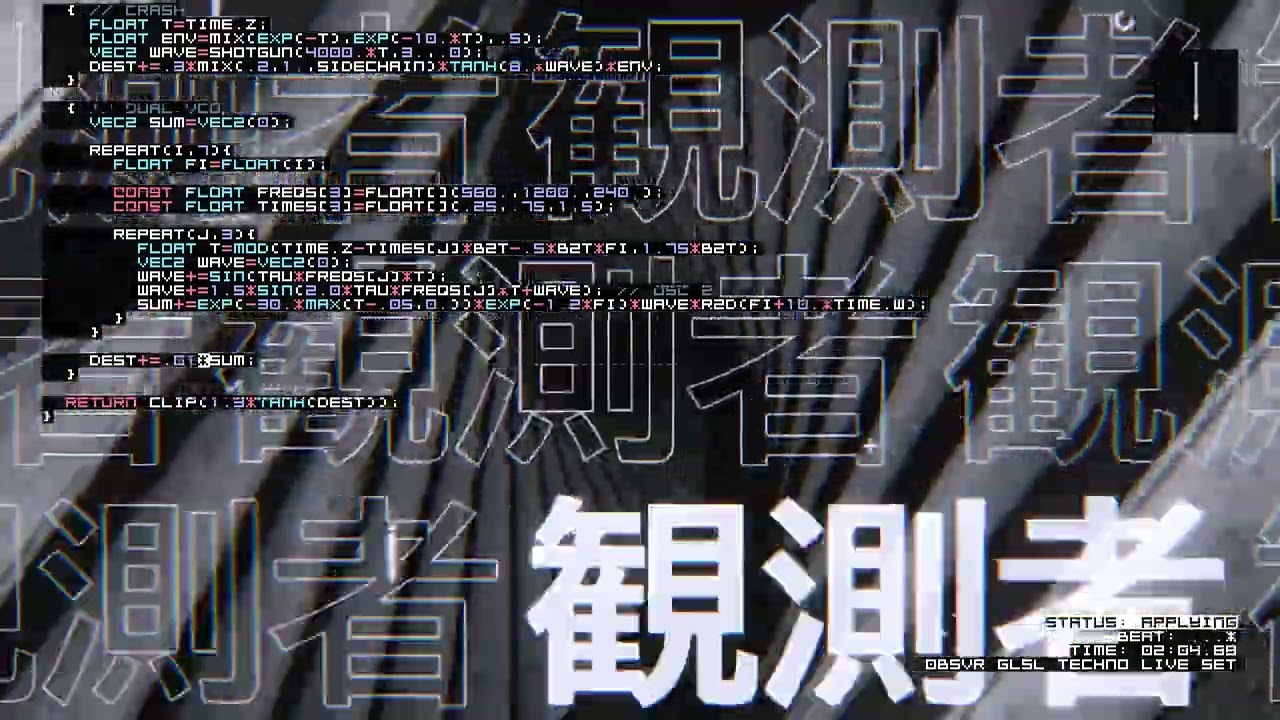
Marginally OT, but have you seen what can be done in the demo scene these days?
Forget DJ’s and VJ’s. The kids these days are in blurring the lines by mixing music with video and with live coding!
Not just that but they are putting all of this together inside 64kb bundles! Check out this stunning example below. The code on screen is there on purpose to demonstrate how the live coding is manipulating the music, video, effects etc.
Stunning stuff and a far cry from the days of Jesus On E’s or State of the Art on the Amiga, or Dutch Breeze by Blackmail on the Commodore 64, for example.
Great to see the demo scene thriving and young people pushing the limits of technology. Fair play to them and long may it be encouraged and continued. 
1 Like
More standard is
alias ll=‘ls -la’
Quicker to type. I think it may be set by default on Ubuntu.
Thanks for that, Andy, I understood a lot of it!
I was intrigued to learn about Braille readers, I didn’t know such things existed.
73 John.
Likewise. It was a new one on me until not so long ago. There’s a few systems on the market. A popular one is JAWS, which has a software suite and a braille keyboard.
Not entirely sure how it stacks up for Linux, but it works well in Windows.
One of the caveats though is that it if you have some sort of bespoke UI or backend and it lacks some accessibility controls or tagging etc, it can struggle to work 100%.
There are bespoke and COTS scripts available though for such situations. From an enterprise side that’s not so bad possibly if there is budget available, but for the individual user it could get quite costly.
In EI there are grants available though I’m not 100% on the specifics around it. Plus there is now the EU Accessibility Act 2025 that came in officially on June 28th this year, which will hopefully help.
1 Like
Got it working Hooooooray ! After much swearing and threats of violence and even stooping to threatening the Laptop with Microsoft Windows ( I think that broke it’s resistance !) I have it working. I have programmed channel 1 as GB3RR but as I’m 15ish miles away ( and the extreme rain + a hill ) I cannot get in on the fixed short none removable antenna. I activated it with the main radio and could hear it quite clearly. So tomorrow I will take it to work ( in Dudley) and see if I can get in. This will now open up the use of the cheap radios with a removable antenna to be used, I did lots of things but in all honesty haven’t a clue what made it work ?

1 Like
In order to learn Morse and get the pass to go from a G7 to M0 I resorted to programming my ZX Spectrum with a program I found in a library book and after a few tries it worked. The problem was it only had a fixed speed so I had to look at the program and found I could speed it up and also alter the frequency. At the time I was quite proud of myself and it did get me a pass, Although I tried HF and it really wasn’t for me !
Now how useful were they at the time !
So we can all complete our ‘After Action Report’ paperwork, a few details of what you actually did to get things going would be useful
Mni Tnx
Dave
This is the Website to what I actually did but I’m not one hundred percent sure it was this as I did so much and didn’t get anything working. I also tried three versions of Chirp which are listed on the Ubuntu Software repository . With one version I could enter the radio type and port but then had no Ok button to press so couldn’t get anywhere. That said I had tried all Chirp versions before
1 Like