Have any of you tried using Chirp in Ubuntu ? I had the idea of programming one of the BF888 that I have for Local repeaters and some simplex channels. But for some reason Chirp will not see the radio or the USB port or device ( despite listing it in Ubuntu and the fact I reloaded Ubuntu from USB on the same port) I also tried connecting my UV5r with no success. Have any of you any ideas ? Would Ubuntu see the device if it was a faulty lead ? The lead is new but of course could be faulty
Under Linux, to access serial ports including /dev/ttyUSB0 etc the User needs to be a member of the dialout group. This doesn’t occur on a default install.
$ id will show what groups you’re in.
$ sudo usermod -a -G dialout [user_name] will add you in.
You need to drop the session for this change to take effect. Indeed, you may need to reboot your box.
Doh! My apologies I should’ve remembered that. My Flipper Zero required that when connecting it directly. Same if I do Quansheng firmware flashing (bonus tip: use Ungoogled Chromium).
Still not working unfortunately, I am in the dialout group but chirp still does not show the usb port. I had checked USB port before and it listed the lead/ USB to serial ( cannot remember the name) I suspect the lead maybe caput ( but strange that Linux sees it ) It does seem unfortunately that the more updates you get lately the less works. After 25 years of Linux only I’m almost tempted to try Windoze although I would proberbly be lost with it !
Using: $ ls -la /dev/ttyU* as noted above, you should see the device reported as /dev/ttyUSB0, or possibly /dev/ttyUSB1 should you have another USB device already plugged into your box. Unsurprisingly, the date and time stamp in the output relates to when you plugged-in the device.
If you then unplug the USB cable and run the command again, the device should no longer be listed. Effectively, this is a combined test of the cable and the basic device connectivity.
You can also try:
$ lsusb
For my box, I get the output shown below. You can see the mouse and keyboard, while FTDI, Ltd FT232 Serial (UART) IC is my WinKeyer. When I unplug the WinKeyer from the Linux box and re-run lsusb, the output no longer contains FTDI … etc.
Are you seeing any changes when you do similar tests?
73 Dave
Bus 006 Device 001: ID 1d6b:0003 Linux Foundation 3.0 root hub
Bus 005 Device 003: ID 046d:c31c Logitech, Inc. Keyboard K120
Bus 005 Device 002: ID 045e:0039 Microsoft Corp. IntelliMouse Optical
Bus 005 Device 001: ID 1d6b:0002 Linux Foundation 2.0 root hub
Bus 004 Device 001: ID 1d6b:0003 Linux Foundation 3.0 root hub
Bus 003 Device 001: ID 1d6b:0002 Linux Foundation 2.0 root hub
Bus 002 Device 001: ID 1d6b:0003 Linux Foundation 3.0 root hub
Bus 001 Device 004: ID 0b05:1939 ASUSTek Computer, Inc. AURA LED Controller
Bus 001 Device 003: ID 13d3:3563 IMC Networks Wireless_Device
Bus 001 Device 005: ID 0403:6001 Future Technology Devices International, Ltd FT232 Serial (UART) IC
Bus 001 Device 001: ID 1d6b:0002 Linux Foundation 2.0 root hub
Bus 002 Device 001: ID 1d6b:0003 Linux Foundation 3.0 root hub
Bus 001 Device 003: ID 8087:0a2a Intel Corp. Bluetooth wireless interface
Bus 001 Device 009: ID 1a86:7523 QinHeng Electronics CH340 serial converter
Bus 001 Device 002: ID 064e:930a Suyin Corp. HP Truevision HD
Bus 001 Device 001: ID 1d6b:0002 Linux Foundation 2.0 root hub
when looking at USB ports as you can see the serial convertor is listed
killerparsnip@killerparsnip-HP-Pavilion-Notebook:~$ sudo ls -la /dev/ttyU*
[sudo] password for killerparsnip:
ls: cannot access ‘/dev/ttyU*’: No such file or directory
killerparsnip@killerparsnip-HP-Pavilion-Notebook:~$
I’m not sure how I got the lower case U as I copied and pasted the command but the above now shows the output with the capital
Despite your best endeavours as a SysAdmin, it rather seems that, for the moment, there is no /dev/ttyU* device to be found.
As such, if you can’t find any ports, the ‘chirp’ app is unlikely to either.
Much like resolving TCP/IP network issues, if you can’t ping the destination box, there’s no point in trying ‘higher level’ things until you can.
A cable swap, as you suggested earlier, is always worth a try, but probably something of a long-shot. It’s puzzling that the CH340 etc shows up when you do lsusb, but there’s no corresponding serial port.
Perhaps it could be a driver issue? But Linux is normally pretty-well behaved in these matters. On this front, any move to Windows would likely be ‘out of the frying pan and into the fire.’
I am wondering if there is a ‘chirp’ User group / reflector? Might be worth trying.
***
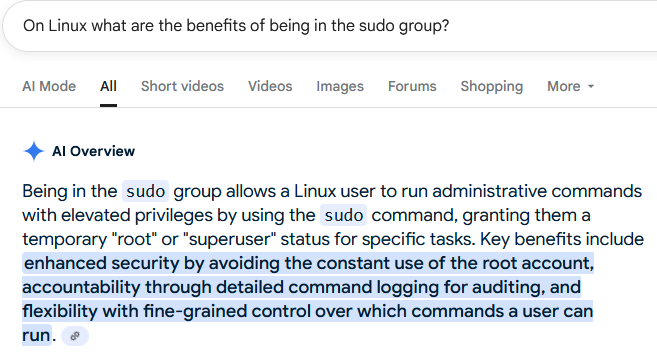
When doing SysAdmin ‘stuff’ my long experience is that it helps if you are in the sudo group.
The AI man presents a succinct explanation (see below) of why; something to think about / try …
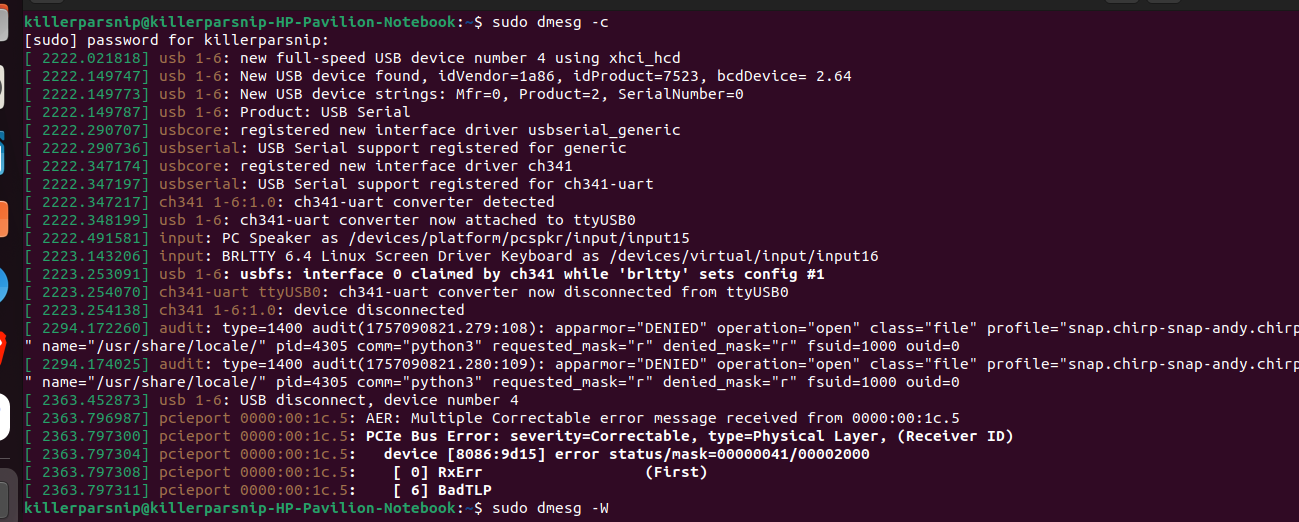
then plug the serial unit in. The dmesg display will tell you all you need to know about the device and how it’s mounted. Ctrl-c to end the dmesg output.
… dated just a few minutes ago, as might be expected. BTW the ‘c’ on the front of the permissions tells you it’s a character, rather than a block (file), device.
I should point out my machine is 10 years Old and quite battered I brought another about a year ago which mysteriously got broken ( never found out who or how) so I had to revert to the poor long suffering old one.
There doesn’t seem to be any output when you plugged it back in. You did unplug and plug it back in?
Anyway brltty is the culprit. You can see brltty trying to take over the UART causing the device to disconnect from the bus. Classic problem, disable brltty and /dev/ttyUSB0 will return and should work FB. The AER message is to do with Active State Power Management not working/being supported. It’s separate problem you can fix later on.
With Linux, old hardware is usually not too much of a problem.
I have just used a few aged parts to build a Linux box with an old MOBO and Intel i3 Haswell from about 2013. To make it zing, I ‘splashed the cash’ and spent £35 on a 500GB NVMe disk - this makes a big difference. I am running the new Debian 13 (Trixie) LTS which came out less than a month ago. The new Linux provides the latest microcode patches, even for old CPUs, doing its best to mitigate the worst of Spectre, Meltdown and similar problems. All Works VY FB.
Not sure how old the s/w is on your (Ubuntu?) box? Newer versions of Linux are probably going to have better CH340 etc drivers.